Empowering Tech-Savvy Librarians on a Budget

  • A Beginner’s Guide to MakerSpaces for Small Libraries

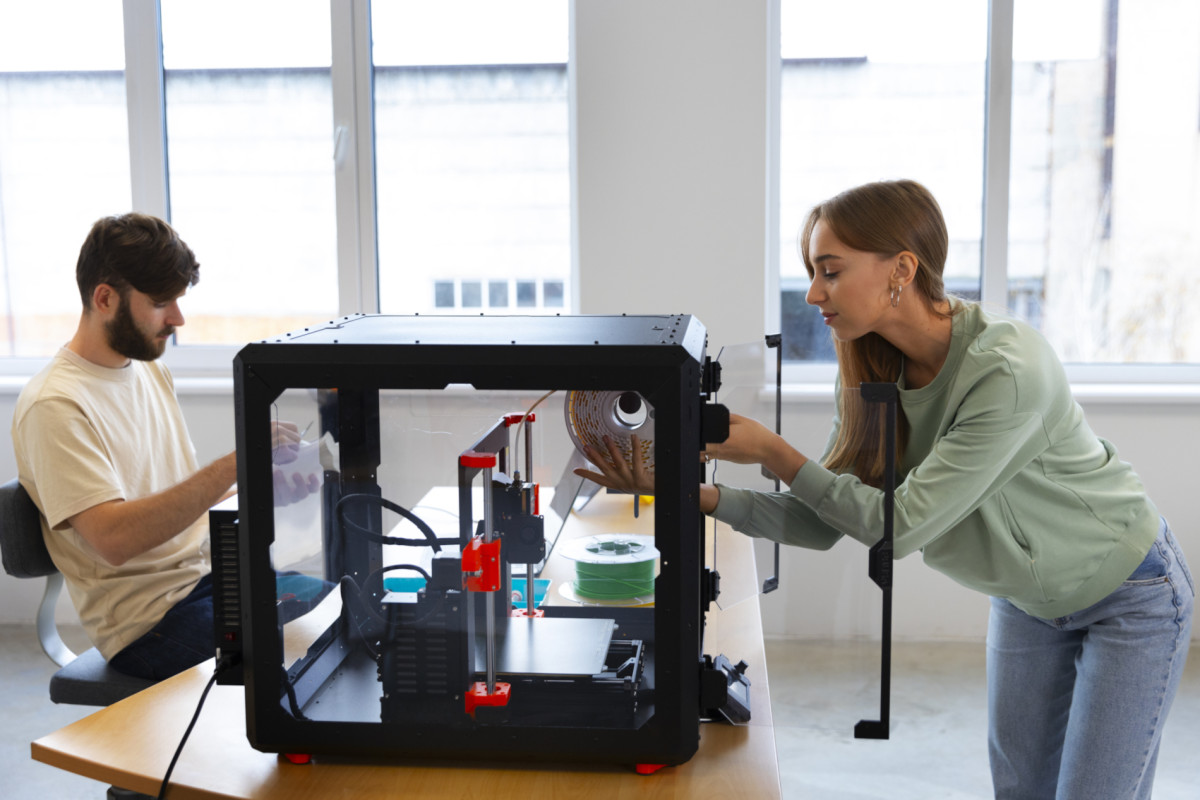
    Designers using 3d-printer

    The idea of launching a MakerSpace can feel intimidating, especially if you’re a small-to-medium-sized library. Expensive equipment, complex technology, and the fear of not having enough space often stop the conversation before it begins. However,

    A MakerSpace isn’t about the room. It’s about a mindset.

    Whether you have a single table, a corner of the reading room, or a small meeting space, your library can build a MakerSpace that fosters creativity, learning, and community engagement—without draining the budget. This guide is designed to help small libraries get started confidently, practically, and affordably.

    What Is a Makerspace?

    A MakerSpace is any area where patrons can learn, create, tinker, and explore using tools and materials provided by the library. It does not need to be high-tech.

    A MakerSpace can include:

    • Craft supplies
    • Coding kits
    • Robotics
    • Art materials
    • 3D printers
    • Digital media tools
    • LEGO bricks
    • Sewing machines
    • Vinyl cutting machines
    • Raspberry Pis
    • Photography equipment

    If your library supports creativity and hands-on learning, you may already have the start of a MakerSpace.

    Why MakerSpaces Matter for Small Libraries

    1. They support 21st-century skills.

    Patrons—especially kids and teens—need access to tools that build problem-solving, digital literacy, and creativity.

    2. They expand what the library can offer.

    A MakerSpace instantly turns your building into a hub for hands-on learning.

    3. They strengthen community relationships.

    Local artists, educators, hobbyists, and businesses often love partnering with MakerSpaces.

    4. They don’t need to be expensive.

    With thoughtful planning, your library can start for under $500—or even $0 by using materials you already own.

    Start Small: Choosing Your Makerspace Model

    Not every library needs a fancy room filled with equipment. Here are approachable options for small libraries:

    1. The Pop-Up Makerspace (Most Flexible)

    A pop-up MakerSpace uses mobile carts or bins to bring maker activities to any area of the library. Mobile carts are great for libraries with no dedicated space.

    • Popular pop-up maker activities include button making, LEGO building challenges, creating simple circuits, origami stations, coding with Ozobots or Sphero Minis, 3D pen drawing, and stop-motion animation using iPads.

    2. The Maker Cart (Budget-Friendly Workhorse)

    A rolling cart stocked with supplies becomes a “MakerSpace on wheels.” Staff can roll the cart to storytime, outreach events, the teen room, or classrooms.

    Include things like:

    • Craft tools
    • Duct tape / hot glue
    • Snap Circuits
    • Raspberry Pis
    • Makey Makey kits
    • Mini robots
    • Basic hand tools

    3. The Small Dedicated Corner

    Have room for a table and a few shelves? That’s enough.

    You might include:

    • 1–2 laptops
    • A 3D printer
    • Art supplies
    • A sewing machine
    • A Cricut Joy or Silhouette Portrait
    • Small robotics kits

    Recommended Starter Equipment (Budget-Friendly)

    Recommended budget-friendly starter equipment includes items that offer a good balance of affordability, durability, and ease of use.

    🧩 Low-Cost Starter Items

    • LEGO bricks
    • Play-Doh or modeling clay
    • Button maker + supplies
    • Coloring and crafting materials
    • Recycled cardboard for prototyping

    🖥 Beginner Tech Tools

    • Raspberry Pi kits (~$50–$70)
    • Makey Makey (~$50)
    • Snap Circuits (~$25–$40)
    • Sphero Mini robots (~$55)

    🖨 3D Printing

    Even a single printer can transform your MakerSpace.

    For small libraries:

    • Bambu Lab A1 Mini – fast, compact, low-cost
    • Bambu Lab P1S – great for higher volume
    • Prusa Mini – excellent but slower

    I find 3D printers offer the biggest “wow” factor for patrons.

    Programming Ideas to Get You Started

    Try offering simple workshops to introduce your MakerSpace to the community.

    Kids & Families

    • LEGO challenges
    • Button-making
    • Build-your-own bookmark station
    • 3D printed keychains
    • Sphero maze races

    Teens

    • 3D modeling basics
    • Coding mini-games in Scratch
    • Vinyl sticker design
    • Anime button art
    • Raspberry Pi retro gaming

    Adults

    • Cricut design workshops
    • Sewing 101
    • Photo digitization
    • “Fix-it Clinic” with community volunteers
    • Make-your-own greeting cards

    Tips for Running a Makerspace in a Small Library

    1. Start with what you have.

    You likely already own items that fit maker programming.

    2. Build slowly—don’t overspend.

    It’s better to grow intentionally than to buy equipment you never use.

    3. Provide guided activities at first.

    Open play is great, but structured programs build confidence.

    4. Make staff comfortable.

    Offer internal mini-trainings so everyone feels confident answering questions.

    5. Partner with community members.

    Local hobbyists love sharing their skills — often for free.

    6. Promote your successes.

    Share photos, stories, and finished projects on social media. Visibility builds momentum.

    How to Fund Your Makerspace

    Small libraries can use:

    • Friends of the Library donations
    • Local businesses (sponsor a printer or robotics kit)
    • Grants from state library organizations
    • STEM education grants
    • Amazon Wish Lists for supplies
    • Community fundraising events

    Even $100 can kickstart meaningful hands-on programming.

    Final Thoughts

    A MakerSpace is less about equipment and more about possibility. Small libraries are often the most creative because they’re used to stretching budgets and rethinking space.

    By starting small, focusing on community needs, and choosing tools strategically, your library can build a MakerSpace that feels welcoming, inspiring, and uniquely yours.
    Creativity doesn’t require a large room—only a place to begin.

  • How the Westhampton Free Library Saved $1,000 Using a 3D Printer for Summer Reading Rewards


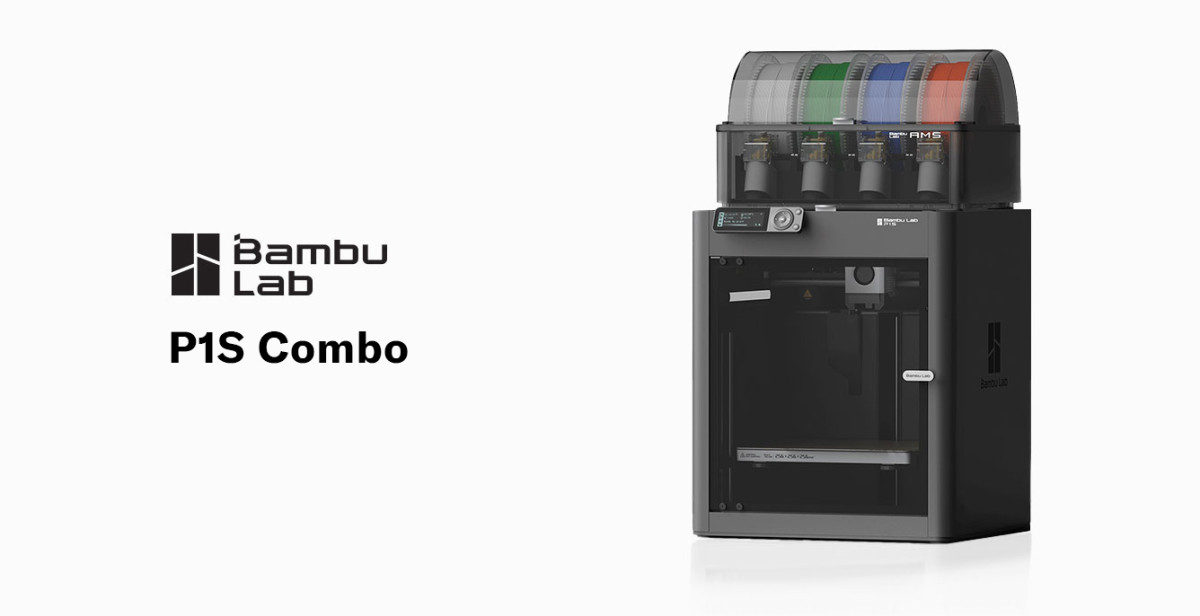
    BamBu Labs P1S 3D Printer

    I know I spoke about this in an earlier post, but today I want to give a case study on how affordable technology, such as 3D printing, benefits libraries. Every library looks for creative ways to stretch tight budgets, especially during big programs like the Summer Reading Club. At the Westhampton Free Library, we found an unlikely hero in our 3D printer—one that saved us over $1,000 in a single project, improved our program experience, and opened the door to new possibilities for future events.

    This is the story of how a simple idea, a spool of filament, and a little patience helped us rethink how libraries can use technology to cut costs and elevate programming.

    The Problem: 1,500 Wooden Coins at $1,000+

    Early in the summer planning process, our Children’s Department approached me with a financial dilemma: “We need to order 1,500 wooden reward coins for the Summer Reading Club.”

    Libraries often use these coins—affectionately called Library Bucks—as part of their summer reading club’s reward and incentive system. Kids collect the tokens as they complete reading challenges and trade them in for small prizes.

    The vendor our Children’s Department typically uses quoted more than $1,000 for the quantity needed. The price wasn’t surprising…but it also wasn’t ideal given our annual programming budget.

    So, instead of clicking “checkout,” we asked a simple question: “Could our 3D printers do this instead?”

    The Solution: A Custom 3D-Printed Coin “Library Bucks.”

    Designing the Coin

    One of our staff members has been learning Blender, a free and open-source 3D creation suite used for modeling, animation, rendering, and visual effects. We tasked her to design a simple round token with the library’s name around the edge, a book symbol in the center, raised edges for durability, and a thickness sturdy enough for kid use.

    Test Printing

    We ran prototypes on our Bambu Lab P1S using standard PLA filament. Each coin used ~1.5–2 grams of filament and took ~3 minutes to print. After a few iterations, we had a coin that was durable, polished, and easy to produce.

    The Print Run: A Thousand Coins, Zero Stress

    Batch Printing

    Each morning, we printed a batch of 25–30 coins, another batch after lunch, and one last batch before the library closed. This made the process incredibly efficient, enabling the project to be completed in less than a month.

    Performance

    Our Bambu printers ran continuously with no adhesion issues, very few failures, and consistent quality.

    The Final Result: A Huge Cost Savings + Better Patron Experience

    💰 Total Savings: Over $1000

    Estimated filament usage: ~4 kg
    Estimated filament cost: $75–$100

    🎨 Full Customization

    We were able to:

    • Add the library name
    • Customize the design
    • Personalize colors
    • Experiment with size and thickness

    🎉 Kid Appeal

    Kids loved the coins, with many asking, “Did the library make these?”

    🛠️ Future-Proofing

    Because we own the STL file, we can easily reuse or modify the design for:

    • Future SRC programs
    • Teen contests
    • Children’s games
    • Scavenger hunts
    • Makerspace events

    The Unexpected Benefits

    1. A Showcase of Technology

    Families saw the printers running before, during, and after the Summer Reading Club, sparking questions and interest in 3D printing.

    2. Cross-Department Collaboration

    The project strengthened collaboration between:

    • Children’s Services
    • Technology Services
    • Circulation

    3. A Proof-of-Concept for Future Savings

    Now, staff regularly brainstorm new items we could print rather than purchase.

    Cost Breakdown

    Item Vendor Cost 3D Printing  Cost
    1,500 wooden coins ~$1,500 ~$75–100 PLA
    Shipping $50–$100 $0
    Customization Extra fee Free
    Total ~$1,500+ ~$100

    Total Savings: ~$1,400

    Tips for Libraries Wanting To Replicate This Project

    • Use a reliable, fast printer (Bambu Lab P1S or Prusa MK4S recommended)
    • Keep the design simple for fast, clean printing
    • Batch your prints to reduce staff oversight
    • Use PLA filament for durability and ease of use
    • Save your STL files for future reuse and adaptation

    Final Thoughts

    This project wasn’t just about saving money. It showcased how technology can reshape library operations and improve programming.

    At the Westhampton Free Library, a project that once cost over $1,000 now costs about $100—and the results were better, more customizable, and more engaging for our patrons.

    3D printers aren’t just for MakerSpaces; they’re powerful tools that help libraries stretch budgets, rethink supplies, and build innovative programs for the community.

    And sometimes, they help you save a thousand dollars in the process.

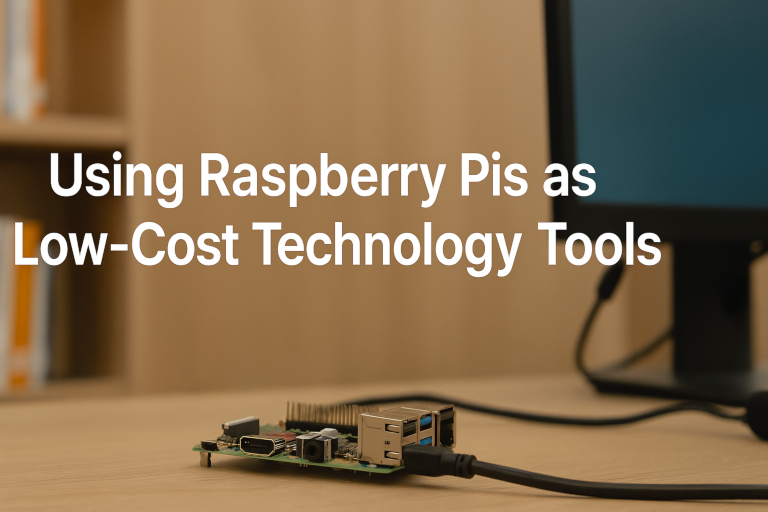
  • Using Raspberry Pis as Low-Cost Technology Tools

    Using Raspberry Pis as Low-Cost Technology Tools banner

    Raspberry Pis: Affordable, Flexible, and Built for Creativity

    Raspberry Pis are single-board computers (SBCs) — compact systems that fit an entire computer onto a circuit board the size of a deck of cards. They’re designed with affordability and flexibility in mind, making them a favorite among educators, hobbyists, and budget-conscious technologists.

    A Raspberry Pi typically costs between $35 and $80. Yet, it includes everything needed to run a complete Linux-based operating system, connect to the internet, and power displays, sensors, and other peripherals. This combination of low cost, open hardware, and community-driven support has made the Raspberry Pi a go-to solution for do-it-yourself (DIY) technology projects in libraries, classrooms, and MakerSpaces.

    Libraries, in particular, benefit from their adaptability—a single Raspberry Pi can serve as a public terminal, digital signage player, coding workstation, or IoT controller. With an ever-growing ecosystem of tutorials and accessories, these little boards can stretch a technology budget further than almost any other device on the market.


    Learn by Doing

    The Raspberry Pi encourages an active, hands-on learning approach. Instead of passively reading about computers, you build and experiment with one directly, all without the worry of breaking more expensive, mission-critical hardware.

    From the moment you install the operating system to connecting sensors or writing your first Python script, the Pi makes technology tangible and interactive. It teaches troubleshooting, logic, and creative problem-solving—skills that are invaluable for both staff and patrons in a library setting.

    Libraries can use Raspberry Pis to teach digital literacy and STEAM skills:

    • Let patrons explore coding in Scratch or Python.

    • Host “build your own computer” workshops, where participants assemble and boot their own Pi.

    • Create technology petting zoos where visitors can safely experiment with hardware and coding without fear of “breaking” anything important.

    The experience of tinkering, failing, and iterating builds confidence—the very essence of learning by doing.


    Digital Signage

    Instead of paying for commercial display systems, a Raspberry Pi can drive a wall-mounted monitor using free tools like Screenly or Yodeck.

    At the Westhampton Free Library, we take this a step further using GoBoard—an open-source, cross-platform digital signage server created by my colleague Walter Pesce. It’s a great example of how open-source software and affordable hardware can combine to create sustainable, customized solutions for libraries on a tight budget!


    Public Terminals or OPAC Stations

    Many libraries have old PC accessories—monitors, keyboards, mice—collecting dust. A Raspberry Pi can bring them back to life as OPACS or public browsing/email stations.

    As I discussed in my previous post, Repurposing Older PCs as OPAC Stations with Debian Linux and OpenKiosk, you can install OpenKiosk on Raspbian (the Pi’s Debian-based OS) to create an inexpensive and locked-down OPAC station.

    It’s a simple, cost-effective way to expand public access without purchasing expensive new computers.


    STEAM Education

    Raspberry Pis are perfect for Maker and STEAM programming. They support popular educational tools like Scratch (for block-based coding) and Python (for text-based coding), allowing learners to build games, automate devices, or explore robotics.

    Projects like blinking an LED, running a weather station, or programming a robot arm all become accessible with a Pi and a few low-cost components. Libraries can use these projects to inspire curiosity and creativity among kids, teens, and adults.


    Project Ideas for Libraries

    If you’re wondering how Raspberry Pis can be used in your library, here are a few practical and creative project ideas that make the most of their flexibility:

    • 🖥️ Program / Event Display Board: Mount a monitor in your lobby that automatically shows upcoming programs, weather, or local community news.

    • 📚 OPAC Station: Combine a Raspberry Pi and OpenKiosk to let patrons search the catalog.

    • 🔧 STEAM Maker Kit: Create checkout kits that include a Raspberry Pi, keyboard, mouse, and preloaded coding tutorials for learning at home.

    • 📷 Photo Booth or Green Screen Station: Set up a Pi with a USB camera and free software like PiCamera for fun community photo projects.

    • 🏫 Library Server Sandbox: Use a Pi as a small web server to teach basic web hosting, HTML editing, or even run a mini intranet for staff.

    These small, low-cost experiments can have an enormous impact on learning and community engagement.


    Final Thoughts

    The big takeaway is simple: Raspberry Pis stretch tight budgets. They’re inexpensive, versatile, and educational—but they’re not meant to replace full desktop PCs. Think of them as flexible building blocks for creative, low-cost tech solutions that can make a big impact in public libraries.

    And if you want to take things further, you can explore more powerful single-board computers (SBCs) like the Odroid, Rock 5, or GMKtec Mini PC, which can handle heavier workloads while still keeping costs somewhat reasonable.


    Resources

    Here are a few places to start if you’d like to explore Raspberry Pi projects or set one up in your library:


  • Stretching Creativity (and Budgets) with 3D Printing in the Library

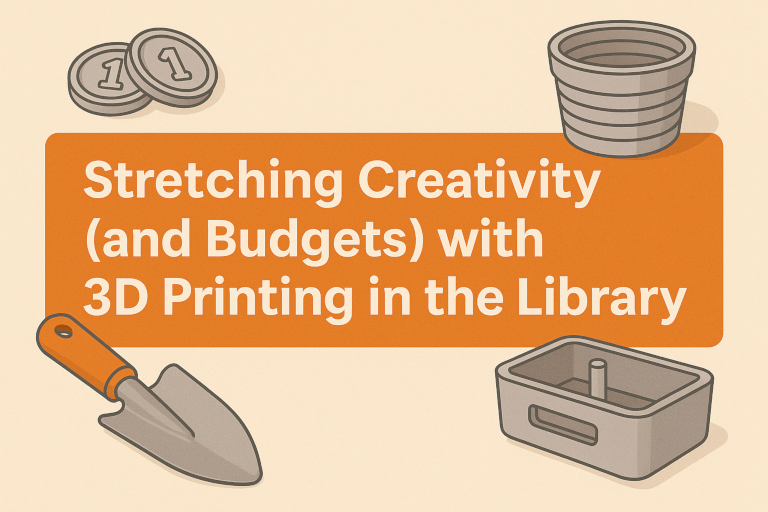
    Stretching Creativity (and Budgets) with 3D Printing in the Library Banner

    In today’s library world, creativity and technology often go hand in hand—and sometimes the most innovative solutions come from thinking small. At the Westhampton Free Library, we’ve discovered that our 3D printers aren’t just fascinating gadgets—they’re also powerful tools for saving money and supporting programs across departments.

    Our library currently has three 3D printers: two Bambu Lab P1S printers and one Bambu Lab A1 Mini. These compact machines have become an integral part of how we bring creative ideas to life. Patrons regularly submit print requests for their own 3D models, and our staff uses the printers to support programming that stretches our budget while adding a unique creative flair.

    Turning Plastic into Possibility

    One of our biggest 3D printing success stories came from our Children’s Department. Each summer, the department runs a popular Summer Reading Club, where children earn Library Bucks—small coins redeemable for prizes. In previous years, we purchased printed wooden coins at a cost of over $1,000 for 1,500 pieces.

    This year, we decided to try something different. Instead of ordering coins, we printed them in-house using our 3D printers. The results were not only visually appealing but also durable, customizable, and completely reusable. Best of all, the switch to 3D-printed coins saved the library over $1,000—proving that creativity can be just as valuable as funding.

    Growing Ideas in the Garden

    Our Adult Services Department also found innovative ways to use 3D printing. The library’s Seed Library and Reading Garden have become community favorites, offering patrons a chance to borrow seeds, learn about sustainable gardening, and enjoy the beauty of plants grown right here at the library.

    To support these efforts, we’ve used our 3D printers to create custom gardening tools, planters, and propagation station accessories. These printed items are not only functional but also align with the library’s commitment to sustainability—reducing waste, reusing materials, and producing what we need right on-site.

    Why 3D Printing Makes Sense for Libraries

    For libraries on tight budgets, 3D printing represents an opportunity to combine technology, creativity, and practicality. Once the printers are set up, the ongoing costs are minimal—a roll of PLA filament costs around $15–$25 and can produce dozens of items.

    From signage holders and name tags to program supplies and educational models, the potential uses are endless. Beyond saving money, these projects showcase how libraries can be MakerSpaces for the community, inspiring innovation and hands-on learning.

    At the Westhampton Free Library, our 3D printers have become much more than equipment—they’re creative problem-solvers that help every department do more with less. Whether it’s printing a prize for a child, a tool for a gardener, or a model for a curious patron, 3D printing has proven to be one of our most versatile and valuable technologies.

    💡 Benefits and Takeaways

    • Saves money: 3D printing reduces costs for program materials and supplies.
    • Encourages innovation: Staff and patrons can design and create solutions in-house.
    • Supports sustainability: Produces only what’s needed with minimal waste.
    • Engages the community: Demonstrates the library’s role as a creative technology hub.


  • Repurposing Older PCs as OPAC Stations with Debian Linux and OpenKiosk

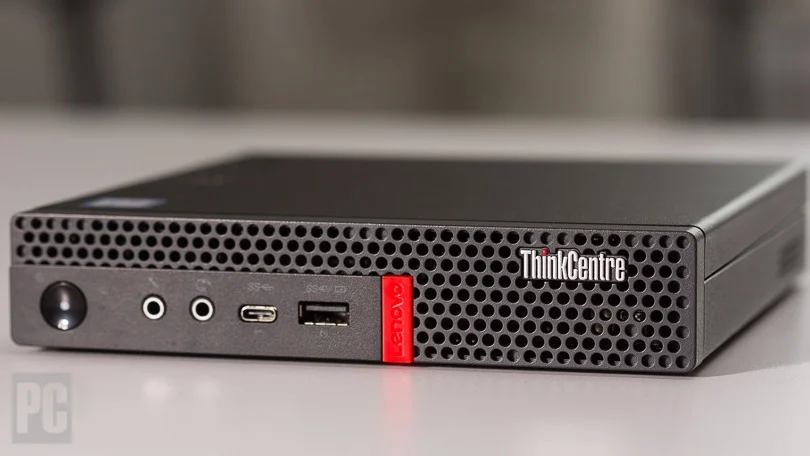
    Lenovo Tiny PC

    In many libraries, aging desktop computers end up gathering dust or heading for the recycling bin. At the Westhampton Free Library, I saw an opportunity to give these machines a second life by turning them into dedicated OPAC (Online Public Access Catalog) stations. With a combination of Debian Linux, OpenKiosk Web Browser, and Innovative’s Vega Discovery catalog, we created a secure, efficient, and cost-effective solution that benefits both patrons and staff.

    Why Choose Debian Linux?

    Debian Linuix Logo

    When evaluating Linux distributions, I tested several options, including Ubuntu, Fedora, and even NixOS. While each has strengths, Debian quickly stood out for this project. Debian’s lightweight desktop environments, such as XFCE and LXDE, run smoothly on older hardware with limited memory and processing power. Unlike some distributions that bundle in numerous pre-installed packages and background services, Debian provides a clean, minimal installation. This helps reduce system overhead and speeds up boot times.

    Another advantage is Debian’s reputation for long-term stability and predictable updates. Once configured, the systems require very little maintenance beyond regular security updates. This was important, since I don’t want to spend a lot of time constantly tweaking settings or troubleshooting software conflicts. Additionally, Debian’s robust documentation and active community support made it easier to find solutions to help customize the environment.

    What is OpenKiosk?

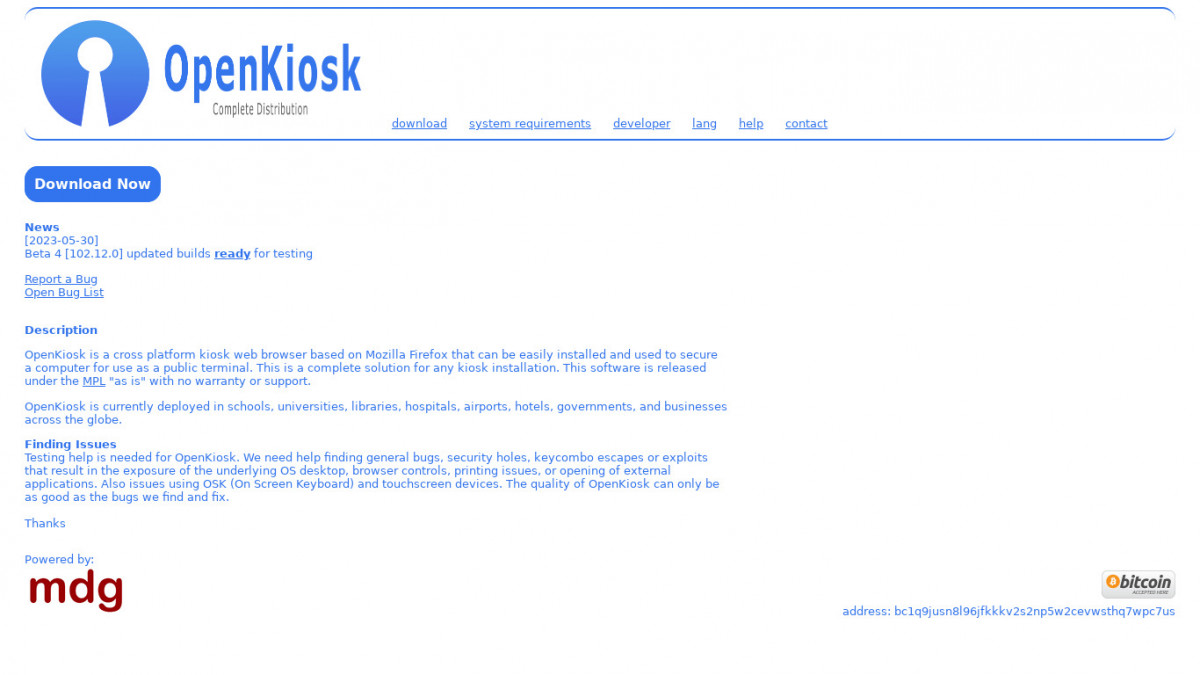
    OpenKiosk Browser Homepage

    I installed OpenKiosk to lock down the computers so they would function exclusively as catalog stations. OpenKiosk is an open-source kiosk browser released under the Mozilla Public License (MPL) and originally developed to provide a secure, customizable browsing experience for public settings such as libraries, schools, and museums.

    OpenKiosk allows administrators to restrict which websites users can access, disable menus and toolbars, and prevent changes to settings. Because it is built on Firefox, it supports modern web standards and runs smoothly even on modest hardware. The interface is familiar to anyone who has used a web browser, which means patrons don’t need extra training to use it.

    Using OpenKiosk’s Whitelisting Feature

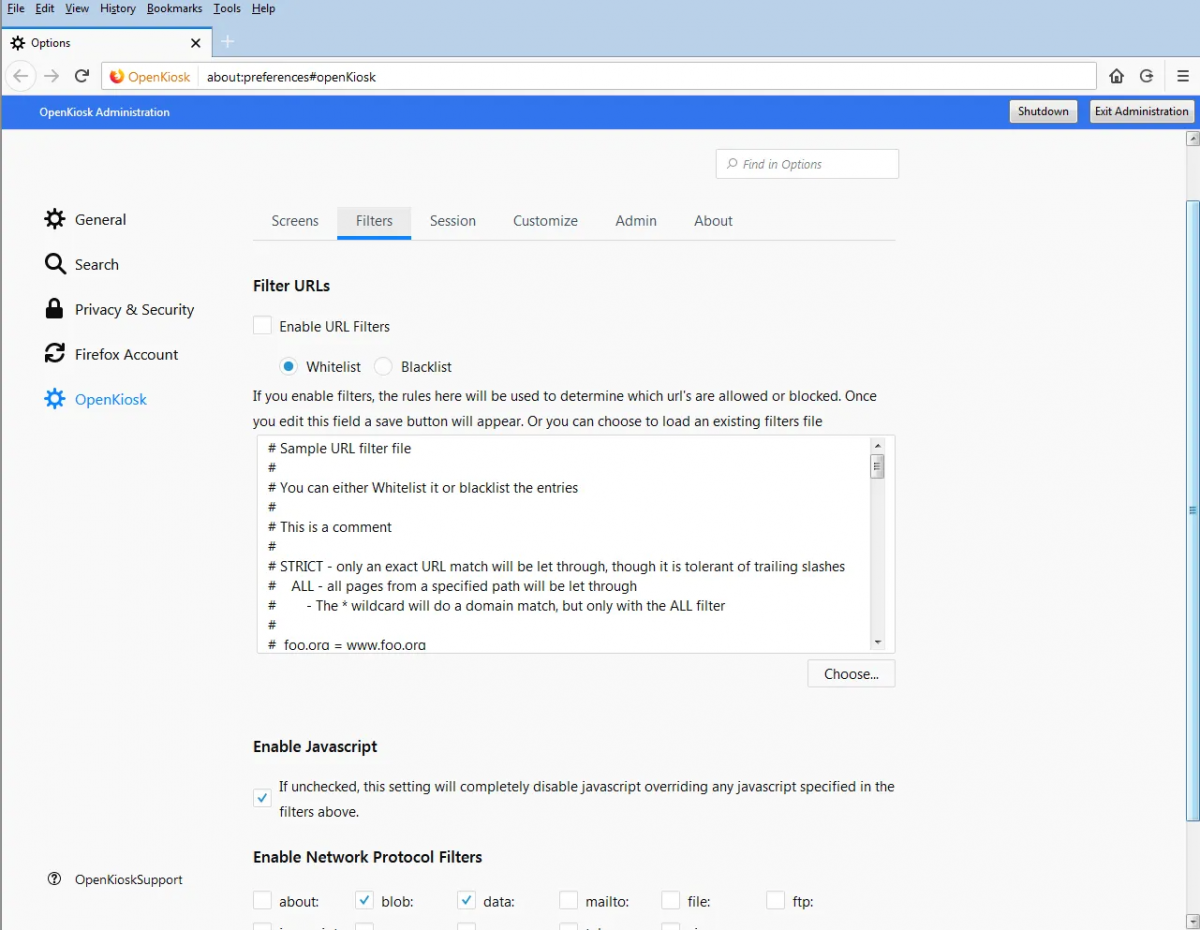
    OpenKiosk Web Browser whitelist page

    One of the most essential features of OpenKiosk is its whitelisting capability. OpenKiosk is configured to allow access only to our library’s OPAC URLs and homepage. This prevents patrons from navigating away to other sites, protecting them from potential security risks and keeping the stations focused on their purpose.

    Setting up the whitelist is straightforward by editing the configuration to define the exact domains and subdomains that are permitted. OpenKiosk then automatically blocks any attempt to visit non-whitelisted websites or open external links. I also configured the system to launch OpenKiosk automatically when the computer starts and to disable any system menus or keyboard shortcuts that could exit the application or access the underlying operating system.

    Integrating Vega Discover as the OPAC Software

    WHAM OPAC

    Our library uses Vega Discover, developed by Innovative Interfaces, as our OPAC platform. Vega Discover provides a modern discovery layer that makes it easier for patrons to search our catalog, explore collections, and manage their accounts. The interface is visually appealing, responsive on different screen sizes, and accessible to users with varying levels of technical skill. All while being ADA-compliant.

    Vega Discover pairs exceptionally well with OpenKiosk because it provides a clean, focused experience without clutter or distracting elements. Patrons can walk up to any OPAC station and immediately begin searching without worrying about pop-ups, browser toolbars, or irrelevant content, and appreciate that the stations are reliable and easy to use.

    Benefits and Takeaways


    Repurposing these PCs has provided multiple benefits for our library. First, it saved us the cost of purchasing new dedicated hardware. Second, it reduced electronic waste by extending the useful life of computers that would otherwise be discarded. Third, it created a secure, maintenance-friendly environment that requires minimal intervention from staff.

    Using Debian Linux and OpenKiosk together gave us the flexibility and control we needed without licensing fees or proprietary restrictions. Combined with Vega Discover’s modern catalog experience, our patrons now have a reliable, efficient way to find materials and explore the library’s resources.

    Conclusion

    Conclusion Infomap

    For libraries looking to stretch their budgets and improve public computing, this approach can be a practical solution. With the end of support for Windows 10, many PCs that can’t be upgraded to Windows 11 can still be useful. By combining Debian Linux, OpenKiosk, and Vega Discover, we created OPAC stations that are fast, secure, and sustainable. If you’re considering a similar project or have questions about configuration, I’d be happy to share more details or hear about your experiences.


  • Debian 13 (Trixie) is Coming and Here is What to Expect!

    Debian is one of the most trusted names in the Linux world.

    Known for its stability, predictability, and rock-solid performance, it is the base for numerous other distributions. Now, the next chapter is almost here.

    Debian 13, codenamed Trixie, is expected to be released between June and August and appears to be a perfect update. Here’s what’s new, exciting, and what you should know if you’re considering the upgrade.

    Release Timeline and Codename Tradition

    In typical Debian fashion, Debian 13 continues the Toy Story-themed naming convention. Trixie follows Bookworm (Debian 12) and Bullseye (Debian 11), keeping the tradition alive while introducing many modern improvements.

    As of this writing, Trixie is in testing, and the Debian Release Team is tracking open RC (release-critical) bugs in preparation for the final release.

    What’s New in Debian 13 (Trixie)?

    Here’s what users can expect out of the box with the stable release:

    🐧 Newer Kernel

    • Likely shipping with Linux kernel 6.12 LTS, offering better hardware support, improved power management, and performance tweaks for desktop and server users.

    🖥️ Updated Desktop Environments

    • GNOME 46
    • KDE Plasma 6—a significant leap forward with better Wayland support
    • XFCE 4.18
    • Budgie Desktop is now officially available in the Debian archives

    Wayland continues to mature, and several desktop environments will use it by default where appropriate.

    📦 Core Package Upgrades

    • GCC 13 or 14 (depending on final freeze)
    • Python 3.12
    • PHP 8.3
    • systemd 255+
    • Improved PipeWire support for audio and screen capture

    Improvements to Installation and UX

    The Debian Installer has long been reliable, but not flashy. Trixie improves the user experience in a few ways:

    • Improved hardware detection for newer laptops and peripherals
      • The Trixie RC1 installer introduces enhancements in `hw-detect`, including better recognition of SD cards and persistent memory devices, and support for a broader range of ARM and EFI systems, streamlining installation on modern hardware.
    • Accessibility tweaks for visually impaired users
      • Improvements in accessibility include fixes to `espeakup`, which ensures speech synthesis works correctly during installation, making it more usable for visually impaired users.
    • Expanded firmware support during installation (including non-free firmware packaged separately)
    • Trixie’s installer now includes non‑free firmware by default and improves firmware handling: it updates supported device lists, avoids unnecessary installs (especially for ARM), and accommodates missing firmware via USB prompts.

    Architecture & Hardware Support

    Trixie continues to support a wide array of platforms, including:

    • x86_64 (amd64)
    • ARM64 (arm64)
    • RISC-V (riscv64) is getting more attention with each release.
    • ARMHF and i386 architectures are still technically supported, but less emphasized.

    Debian 13 also offers refined support for Raspberry Pi 5 and similar boards, making it a solid choice for lightweight DIY and IoT projects.

    Stability

    As always, Debian walks a tightrope between stability and currency. It may not have the newest packages, but what it does ship is thoroughly tested. Debian Backports will again be a valuable option for users wanting newer versions of select software without compromising system stability.

    Trixie is ideal for:

    • Developers who value consistency 
    • Sysadmins running critical infrastructure 
    • Desktop users who don’t need the bleeding edge but want solid performance

    Should You Upgrade?

    If you’re running Debian 12 (Bookworm), the upgrade path to 13 should be relatively smooth. Just be sure to:

    • Back up your data
    • Check for deprecated packages or services
    • Review release notes once the stable version drops

    For new users or those coming from other distros, Debian 13 is a great place to start if you’re looking for a “set-it-and-forget-it” Linux experience.

    Final Thoughts

    Debian 13 (Trixie) isn’t revolutionary, but that’s the point. It’s evolutionary, taking one of the most respected Linux distributions and giving it the tools to stay relevant in 2025 and beyond. Debian is one of the most trusted names in the Linux world. Known for its stability, reliability, and robust performance, it is the foundation for many other distributions, including Ubuntu, Kali, and MX Linux. Now, the next chapter is almost here. Debian 13, codenamed Trixie, is expected to be released between June and August. This update is shaping up to be a well-balanced release. Here’s what to expect, what’s new, and what you should consider if you consider upgrading.